Windows doesn’t support using your iPhone as a trackpad out of the box, so you need a companion app on both devices. In this guide, we’ll use Tappio (an app we built for this exact purpose). The core trackpad and keyboard features are completely free, with no ads and no account required. Setup takes about five minutes.
What you need
- An iPhone or iPad with Tappio installed from the App Store.
- A Windows PC running Windows 11, or Windows 10 (October 2024 update or later). PCs with Arm processors need Windows 11.
- A shared local network. Both devices must be on the same Wi-Fi network (or your PC can be connected to the router via Ethernet).
Doesn’t Windows already do this?
No. Microsoft’s Phone Link syncs calls, messages, and notifications between your iPhone and PC, but it can’t control your mouse or keyboard. Remote desktop apps can control your computer, but they mirror your entire desktop onto your phone’s small screen—which is clunky and unnecessary when you’re already looking at a monitor or TV. A dedicated trackpad app turns your phone into an input controller while keeping your eyes on the big screen.
Step 1: Install Tappio on your PC
On your PC, download Tappio for Windows, run the installer, and launch the app.
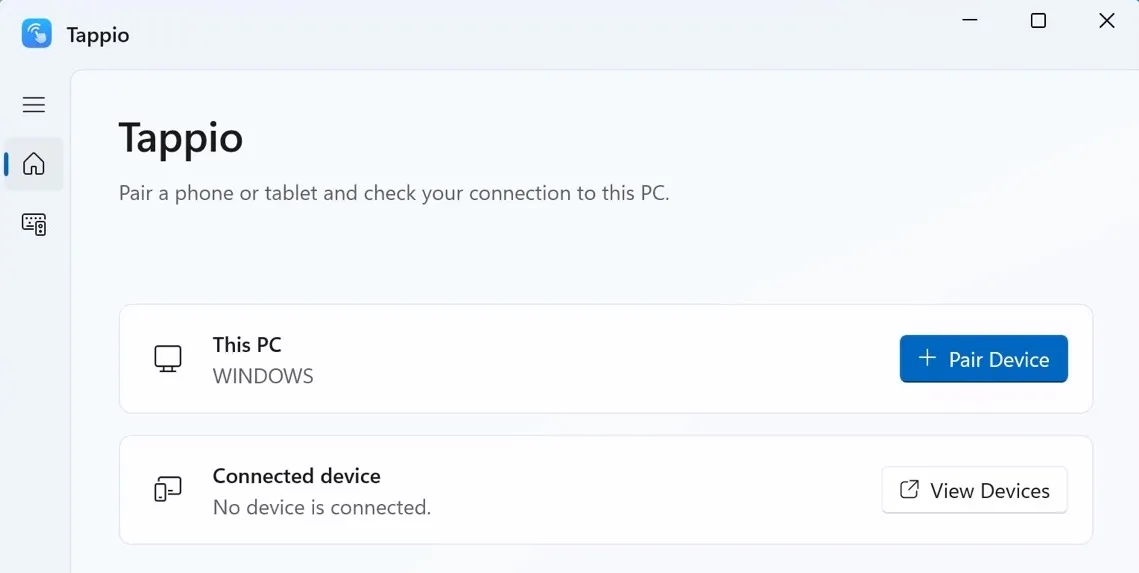
During setup, the installer automatically configures Windows Firewall to allow incoming connections on private networks (like your home Wi-Fi). If Windows treats your home network as public, Tappio will display a yellow warning banner. See how to fix a public network connection.
Step 2: Install Tappio on your iPhone
Install Tappio from the App Store and open it. When iOS prompts you to allow Tappio to “find and connect to devices on your local network,” tap Allow. This permission is required so the app can discover your PC over Wi-Fi.
Step 3: Pair your iPhone with the QR code
- On your PC, click Pair Device to display a pairing QR code.
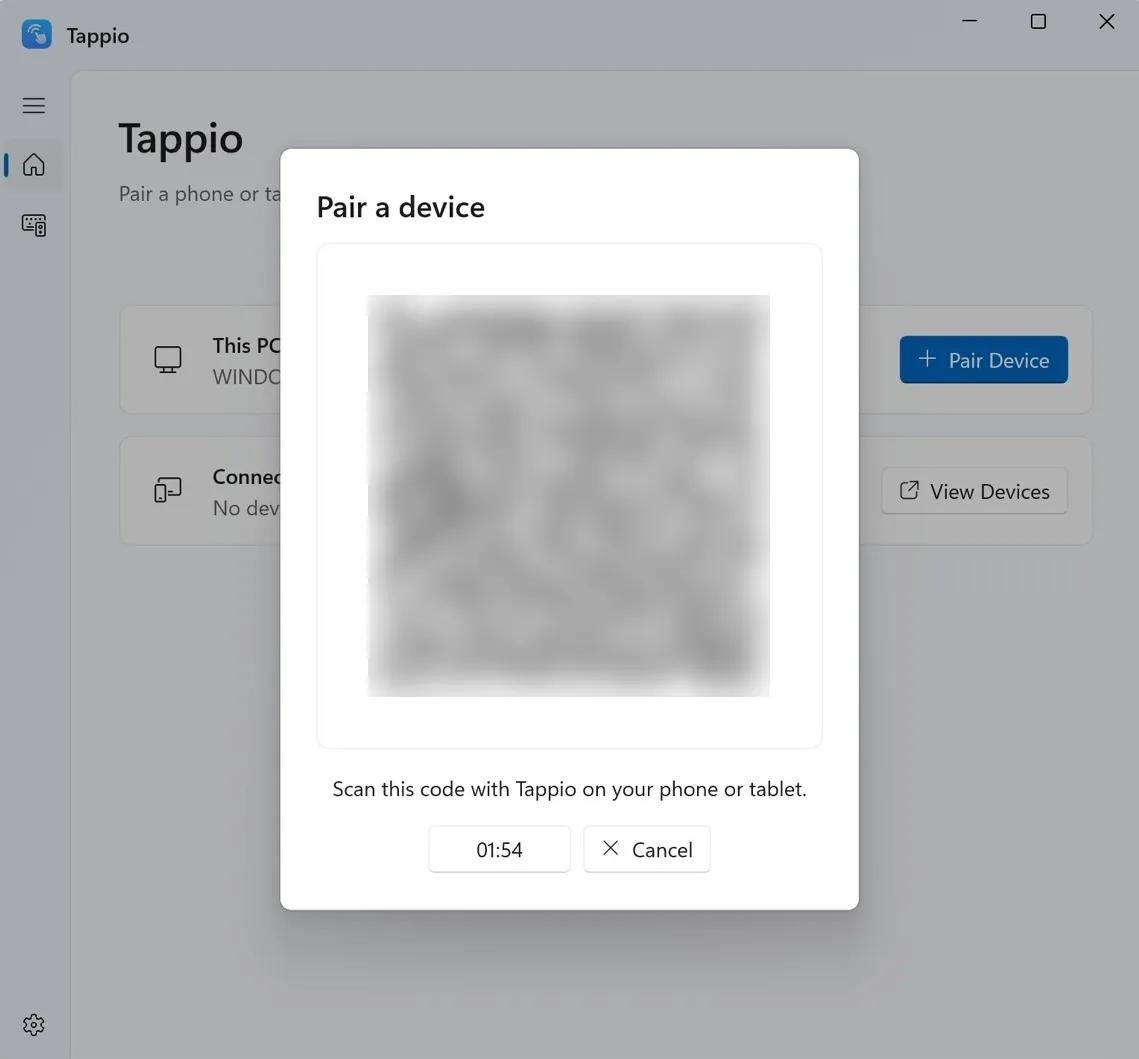 We blurred our code. Scan the one on your own screen.
- On your iPhone, tap Choose a computer at the top, then select your PC from the list.
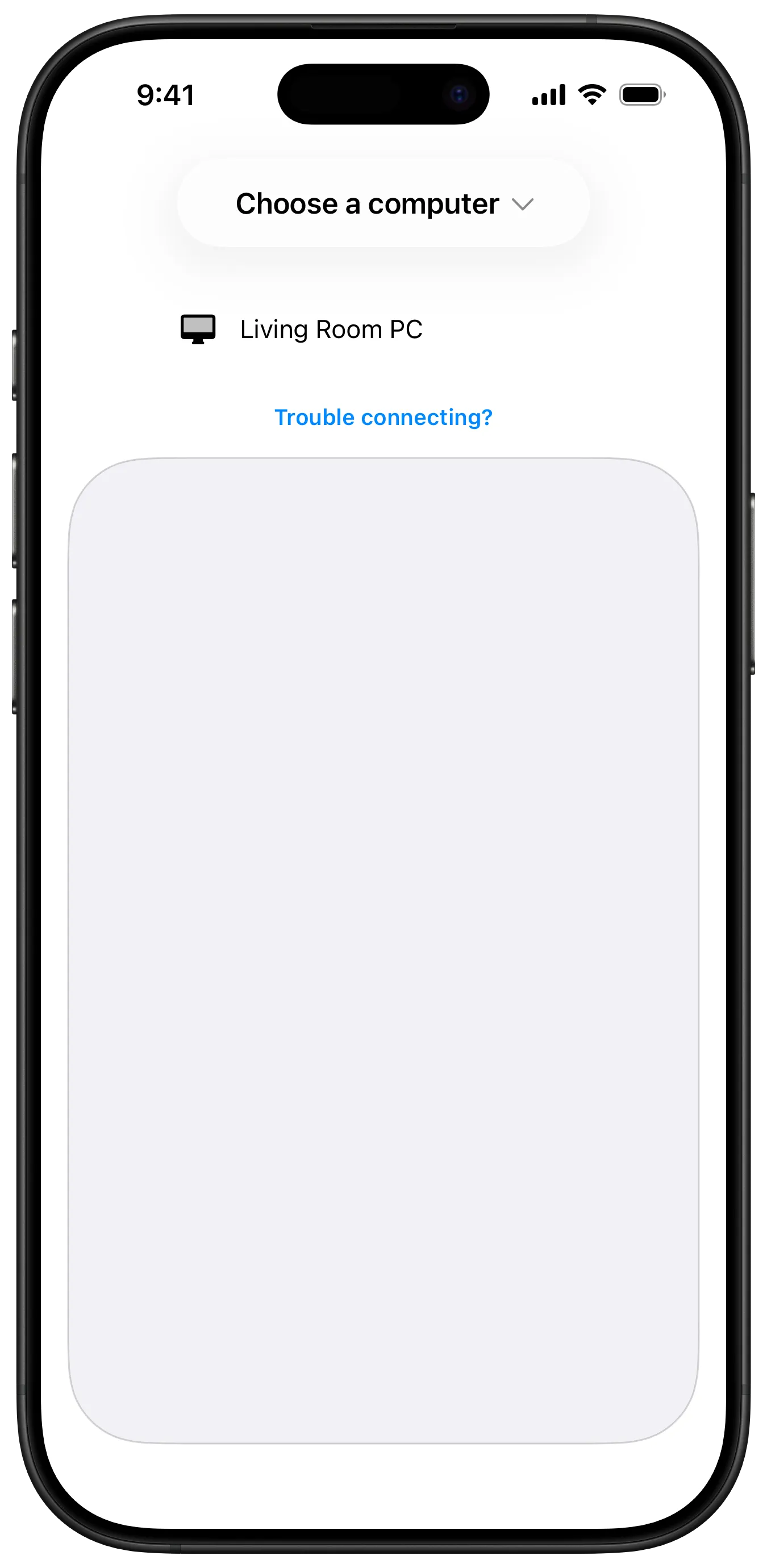
- Point your iPhone camera at the QR code on your PC screen. (If iOS asks for camera access, tap Allow).
For security, the QR code expires after two minutes. If it times out before you scan, simply click Pair Device on your PC again to generate a new one.
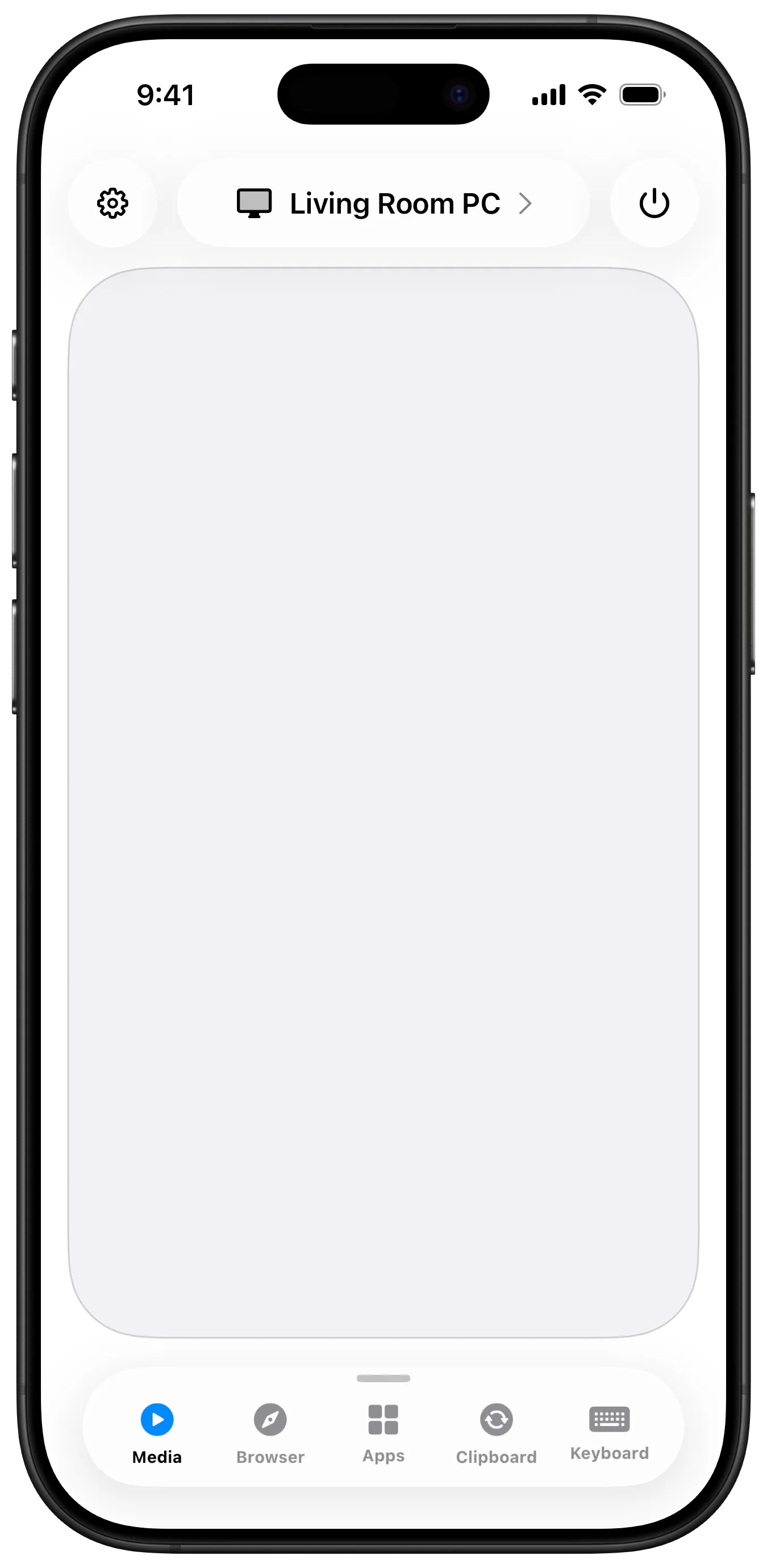
Once scanned, your iPhone immediately switches to the trackpad view with your PC’s name at the top. You only need to pair once: going forward, simply opening Tappio on both devices will reconnect them automatically.
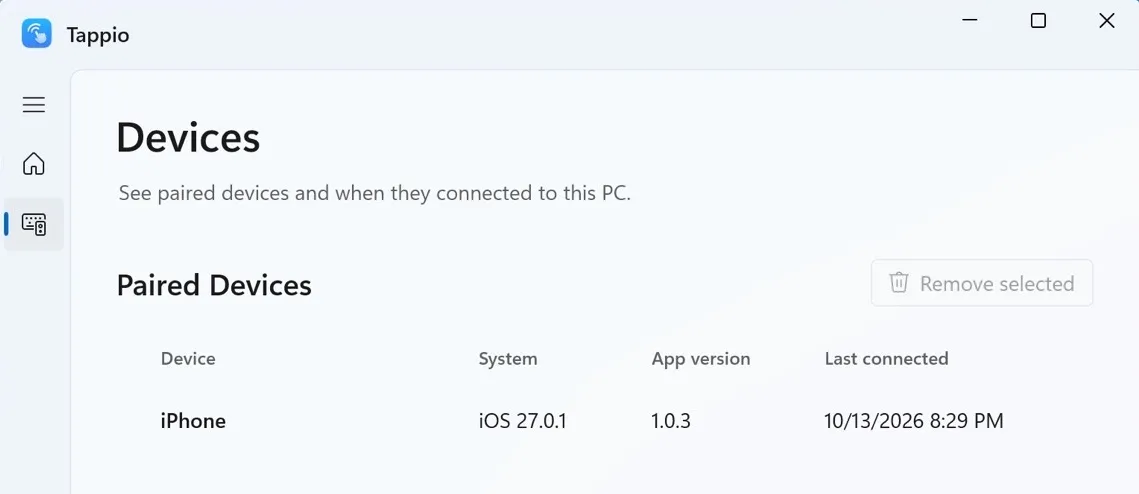
💡 Tip: To have your PC ready to connect anytime without manually opening Tappio, turn on Start with Windows in Tappio’s Settings on your PC. You can also view or remove paired devices anytime from the Devices page in Tappio on Windows.
Step 4: Use the trackpad
| To do this | On your iPhone |
|---|---|
| Move the pointer | Slide one finger |
| Click | Tap |
| Right-click | Tap with two fingers, or touch and hold |
| Scroll | Slide two fingers up or down |
To adjust pointer sensitivity, scroll speed, or scrolling direction (natural vs. traditional)—or to enable an edge scroll strip—tap the gear icon in the top-left corner.
Step 5: Type with the keyboard
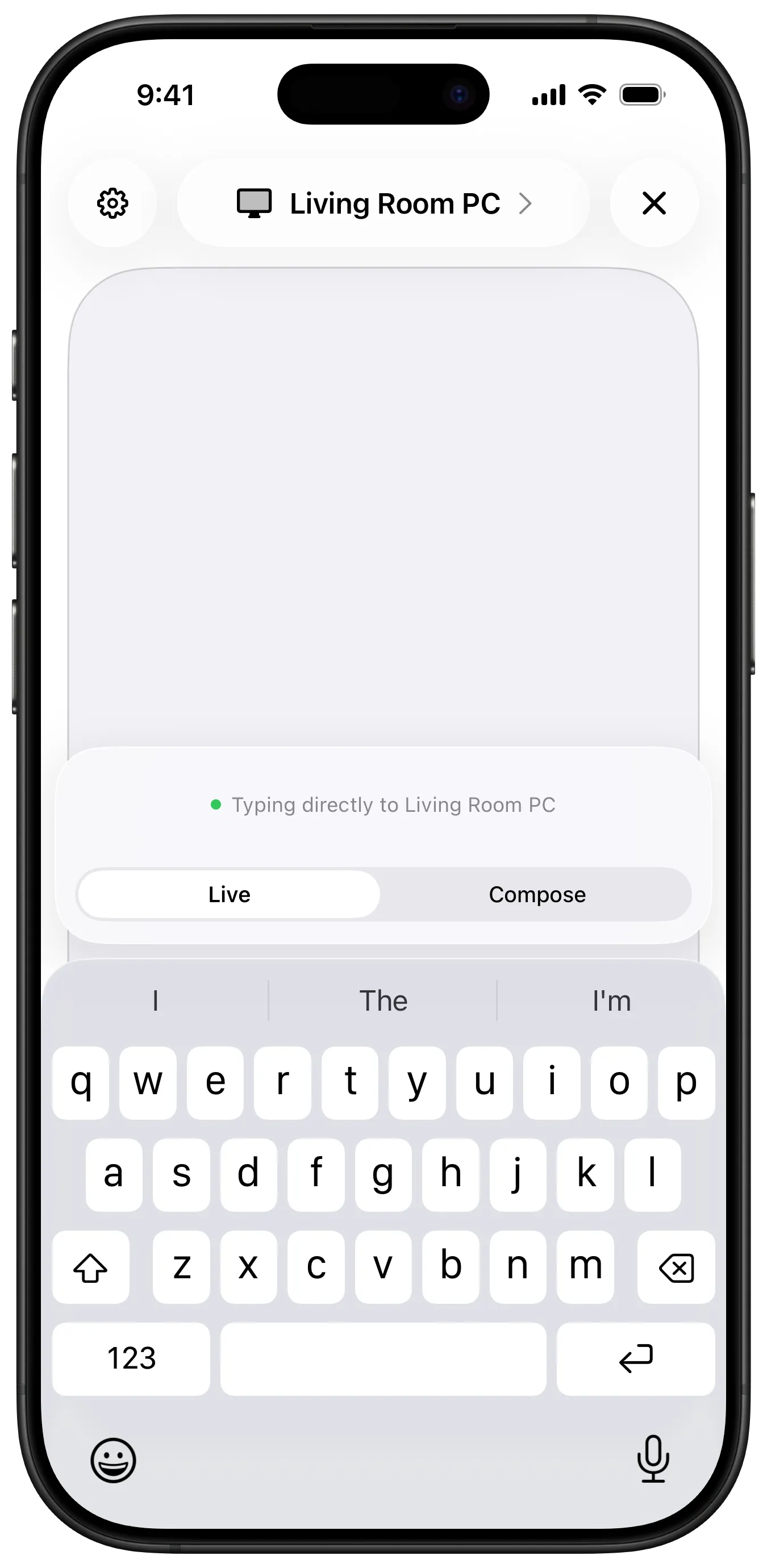
Tap Keyboard at the bottom of the screen, then pick a typing mode:
- Live sends each keystroke to your PC in real time as you type.
- Compose lets you draft or paste text on your phone first. Tap the up arrow to transmit the entire block at once—ideal for long messages, URLs, or passwords.
You can also use voice dictation by tapping the microphone icon on your iOS keyboard.
What Tappio can’t do
- Mirror your PC’s screen to your phone. Tappio is an input remote, not a display streamer. If you need to view your desktop from your phone, you’ll want a remote desktop tool instead.
- Work outside your local network. Your iPhone and PC communicate directly over your local Wi-Fi without routing through external servers. Because of this, Tappio won’t work over cellular data or when you’re away from home.
If your iPhone can’t find your PC
- Make sure both devices are on the exact same Wi-Fi network. Guest Wi-Fi networks typically isolate connected devices, preventing your phone from finding your PC.
- Confirm Tappio is running on your PC. Closing the window minimizes Tappio to the Windows system tray (notification area). Right-clicking the tray icon and choosing Exit Tappio stops it, and your iPhone can’t connect until you open Tappio again.
- Check your network profile. If Tappio displays “This PC is on a public network,” Windows Firewall is blocking incoming traffic. Follow our public network troubleshooting guide to resolve it.
- Verify Local Network permission on iOS. Go to iPhone Settings › Apps › Tappio and ensure Local Network is enabled.
- Temporarily pause any active VPN. VPNs on either your PC or iPhone often reroute local traffic or block LAN discovery.
Want more than a trackpad?
Everything you need for everyday input—trackpad, keyboard, app launcher, and system power controls (sleep, restart, shutdown, lock, and log out)—is completely free forever.
If you want even more control from the couch, Tappio Pro adds Media Remote (playback and volume controls), Browser Remote (tab navigation and zoom shortcuts), Clipboard Sync (copy and paste text seamlessly between devices), and Custom Wallpapers.