If your iPhone and Windows PC are on the same Wi-Fi network but your iPhone can’t find or connect to the PC, the culprit is often your Windows network profile.
Windows assigns every network a profile: Public or Private. On a public network, Windows Firewall blocks incoming connections from other devices. That makes sense at a coffee shop or airport, but it also blocks your own phone at home if Windows defaulted to Public when you first connected to your Wi-Fi.
The screenshots below show Tappio, our iPhone trackpad and keyboard app, but the Windows settings and troubleshooting steps apply to any companion or remote app.
How to tell if your network is public
Tappio shows a yellow banner on its Overview page:
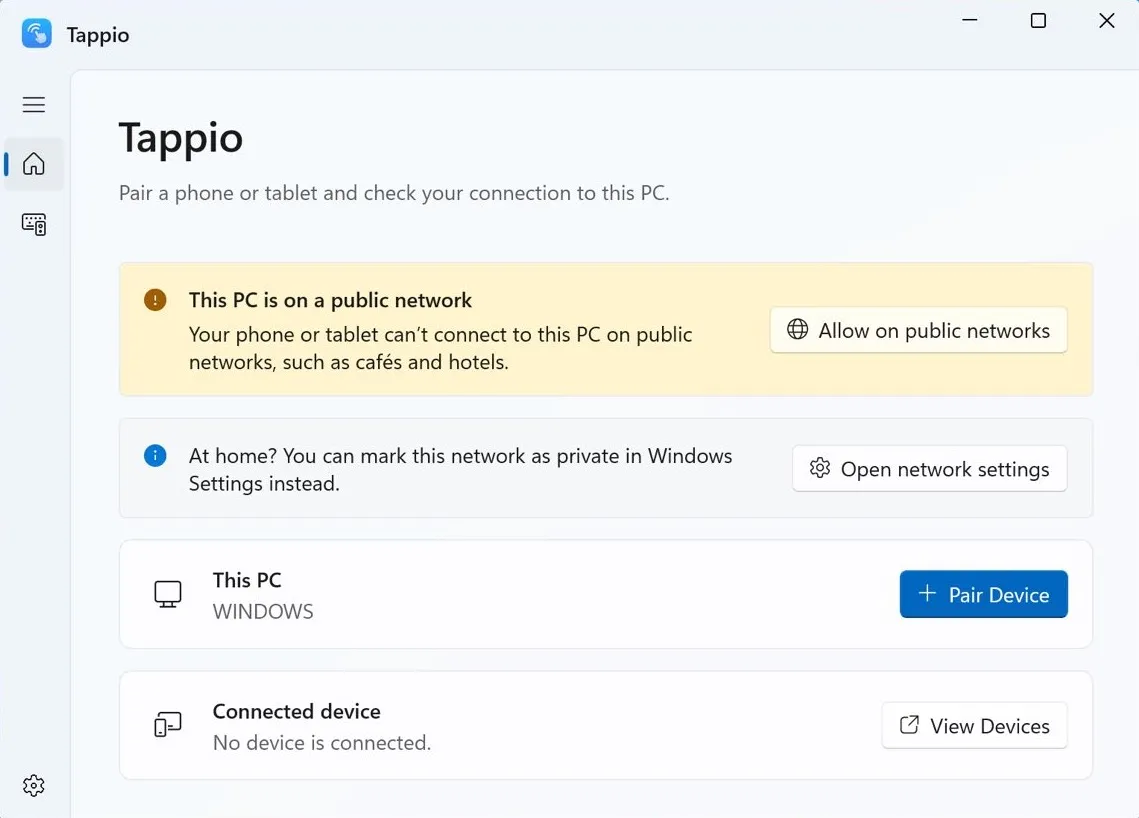
You can also check in Windows: open Settings › Network & internet. Near the top of the page, your active connection is labeled Public network or Private network.
Fix 1: Mark your home network as private (recommended)
Do this only on networks you trust, such as your home Wi-Fi.
On Windows 11:
- Open Settings › Network & internet, or click Open network settings in Tappio.
- Select Wi-Fi, then click [your network name] properties. On a wired connection, select Ethernet instead.
- Under Network profile type, choose Private network.
On Windows 10:
- Open Settings › Network & Internet.
- Select Wi-Fi or Ethernet, then select your network.
- Under Network profile, choose Private.
Once the network is private, Windows Firewall lets your phone connect and the warning banner disappears.
Fix 2: Allow Tappio on public networks
If you can’t change network settings on your computer, such as a work laptop managed by your IT team, you can allow Tappio on public networks instead. Click Allow on public networks in the banner, or turn it on in Tappio’s Settings.
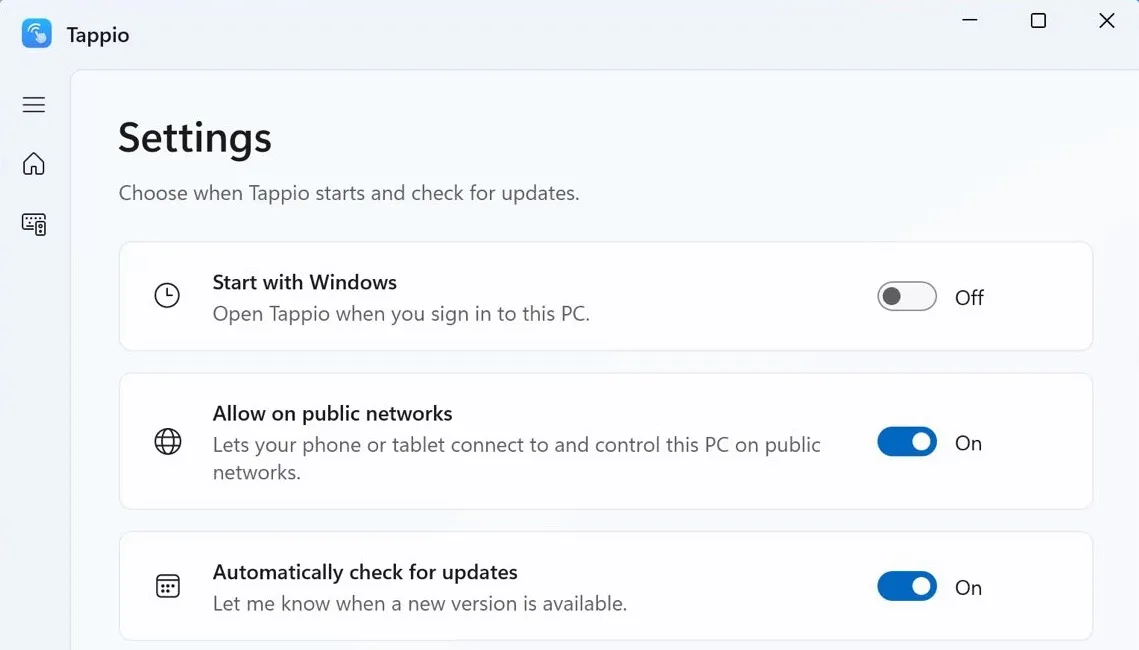
Is this safe? Yes. Even with this setting on, your PC only accepts input from devices you’ve paired by scanning your PC’s QR code.
Keep in mind: This helps on locked-down work PCs, but it won’t necessarily make remote apps work on hotel or café Wi-Fi. Many public hotspots use client isolation (also called AP isolation), which stops connected devices from talking to each other regardless of Windows Firewall settings. On your home Wi-Fi, Fix 1 is still the cleanest and most reliable solution.
Still can’t connect?
- Make sure both devices are on the same Wi-Fi network. Guest networks often isolate connected devices, so your phone can’t find your PC.
- Confirm Tappio is running on your PC. Closing the window keeps Tappio running in the system tray (notification area). Right-clicking the tray icon and choosing Exit Tappio stops it.
- Check Local Network permission on your iPhone. Go to Settings › Apps › Tappio and make sure Local Network is turned on.
- Pause any VPN. A VPN on your PC or iPhone can reroute local traffic or block devices from finding each other.
New to Tappio? See how to use your iPhone as a trackpad and keyboard for a Windows PC.